
Group or merge devices
ReMatter has two ways to put devices together, and they do different things.
- Group several devices that are in one place, for example three bulbs in one ceiling fixture. Each device keeps its own name, room and code.
- Merge the codes of one physical device. For example, a lamp can ship with a Matter code and a HomeKit code. After a merge, the lamp is one entry in your list with both codes.
Pick by asking one question: is this one thing, or several things? Several things go in a group. One thing with several codes is a merge.
The difference matters because a merge changes your details. A merged device has one name, one room and one icon for all of its codes. A group changes nothing about its devices.
Start with a drag
Press and hold a device in the list, then drag it.
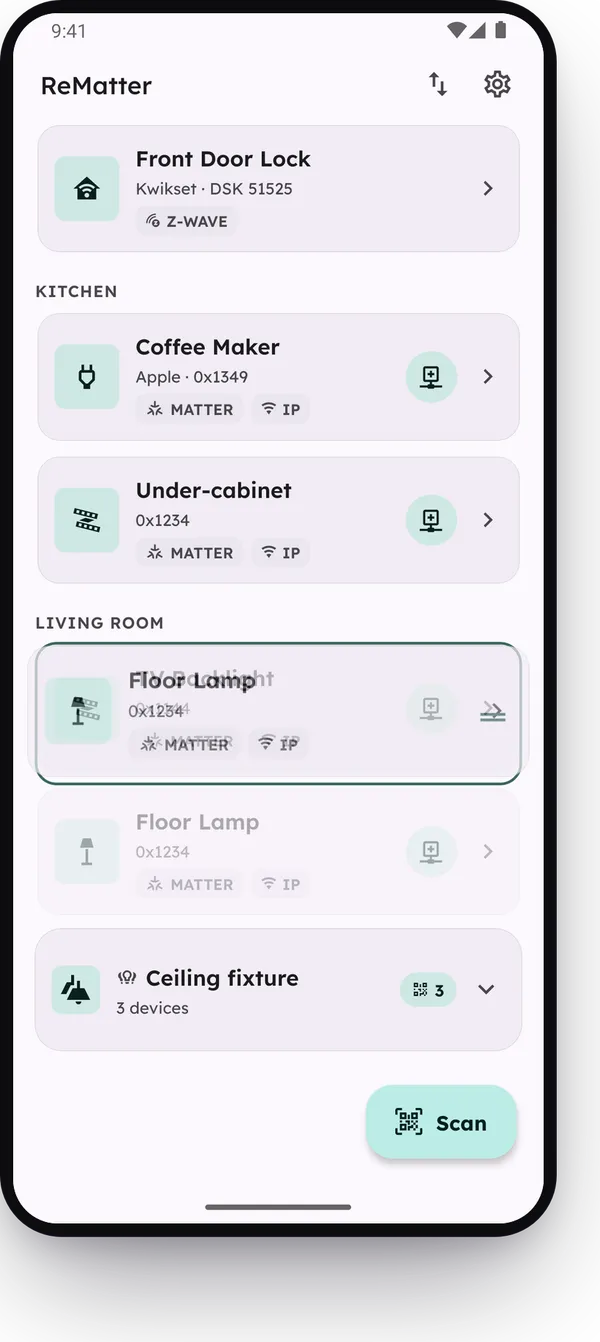
- Drop it on the top or bottom edge of another device to move it there. See Arrange your device list.
- Drop it on the middle of another device to put the two together. The target device gets an outline. When you see the outline, you are over its middle.
A sheet opens with two pages, Group and Merge. Swipe left and right to move between them. The sheet changes with the target:
- If the target is in a group, the first page offers Join and the group’s name.
- If both devices are in the same group, the sheet shows only Merge.
- If the two devices have the same protocol, the sheet shows only Group.
Group devices
The first page of the sheet is the group. It shows the new group as it will look in your list, and it suggests a name from the room, for example “Living room fixture”. If you want a different name, change it. Then tap Group them.
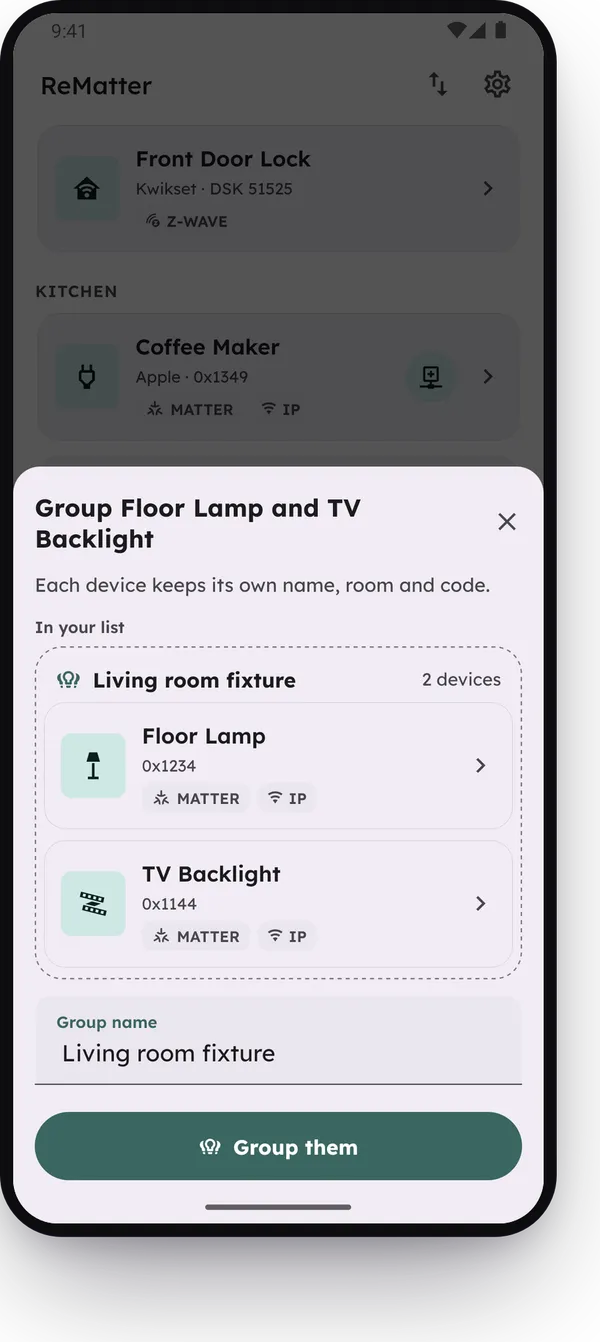
The group shows as one card in its room. Tap the arrow on the card to show the devices in it. Press and hold the card to move the whole group.
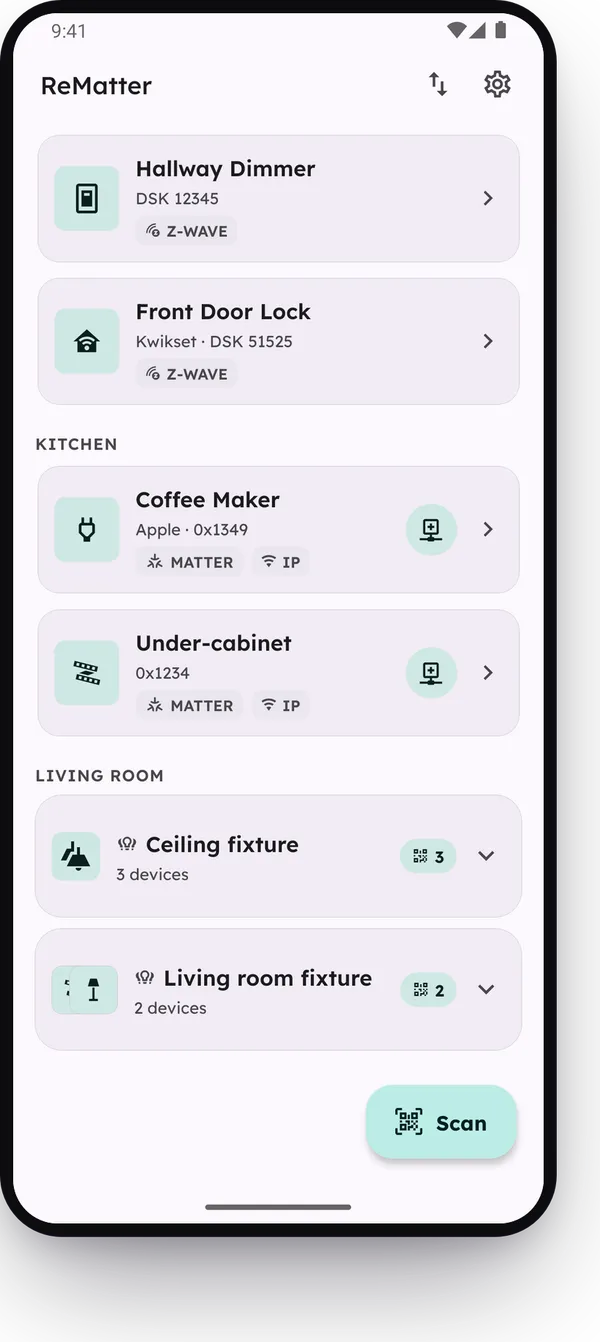
To add a device to a group that you have, drop the device on the middle of the group card. It joins at once, with no sheet. You can also open a device, tap the menu (three dots) and choose Add to group.
Groups came in version 1.0.17, and group cards came in version 1.0.18.
Change or delete a group
Tap the group’s name on its card to open the Group screen. The menu (three dots) has Edit group and Delete group.
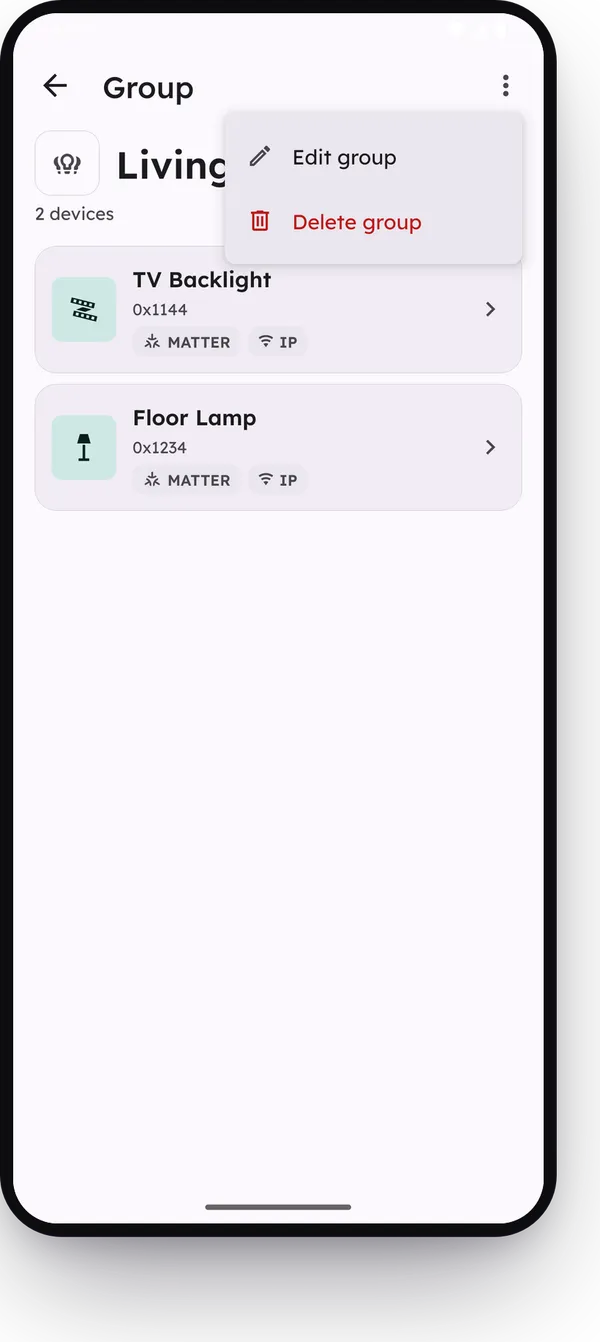
In Edit group, you can rename the group, give it an icon, and add devices. To take a device out, tap the red minus next to it. A bar at the bottom of the screen gives you 5 seconds to tap Undo.
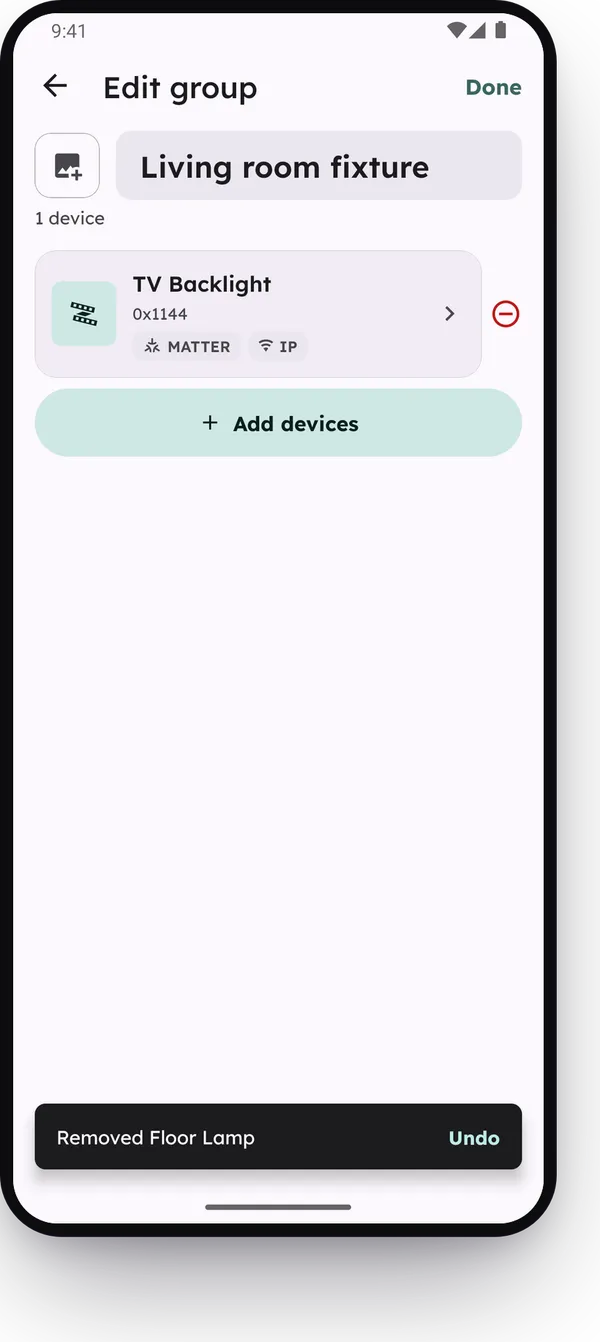
Delete group removes the group, not its devices. The devices stay in their room.
The Undo bar came in version 1.0.36.
Merge devices
Drag one code onto the other, then swipe to the second page of the sheet, Merge.
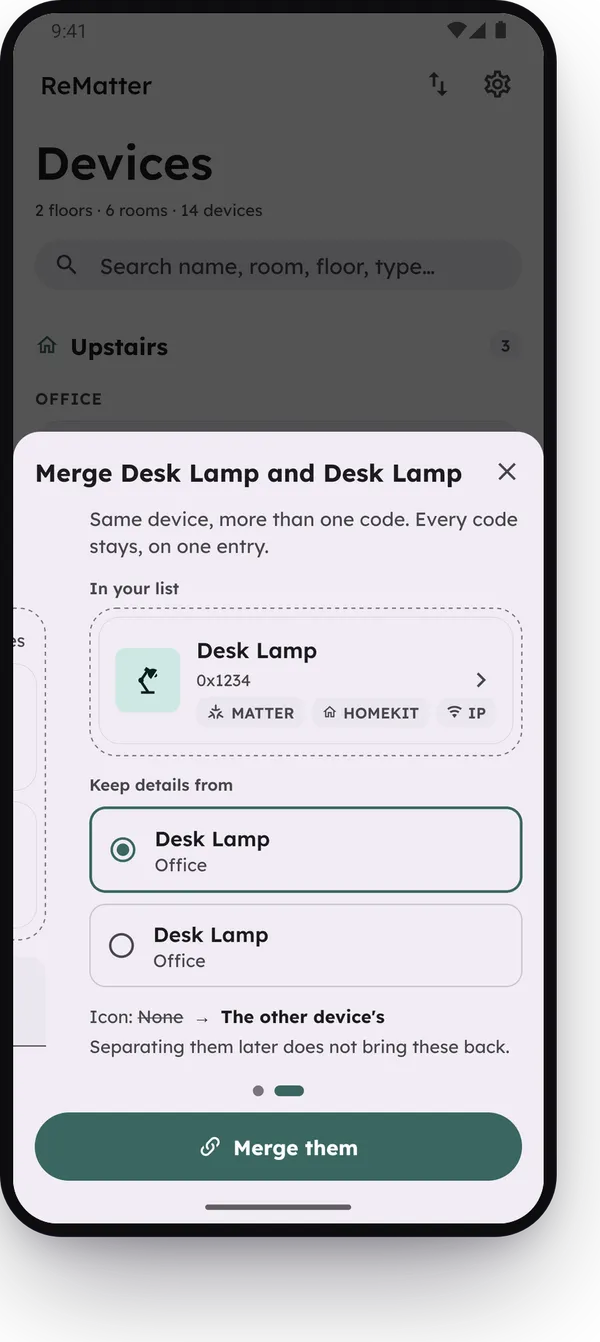
Under Keep details from, choose the device whose name, room, floor, icon and group you want to keep. The list under it shows what changes on the other device. Then tap Merge them.
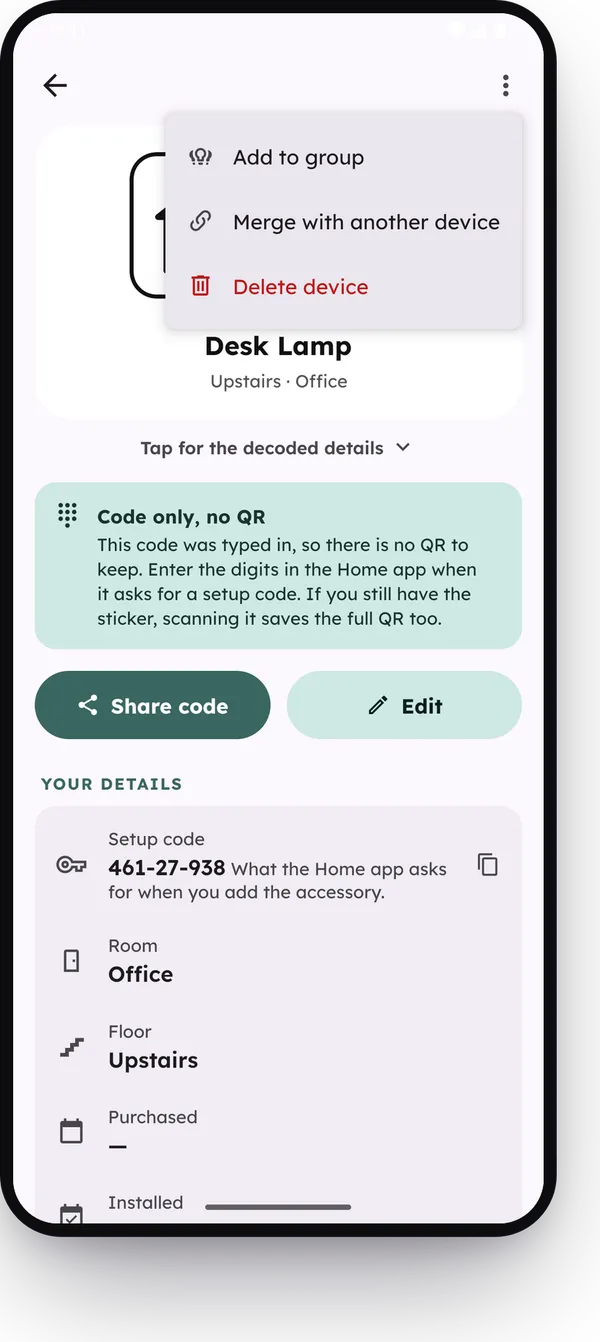
You can also open a device, tap the menu (three dots) and choose Merge with another device. Then tap the device that is the same physical thing. ReMatter shows what changes and asks you to confirm. In this case, the device that you started from keeps its details.
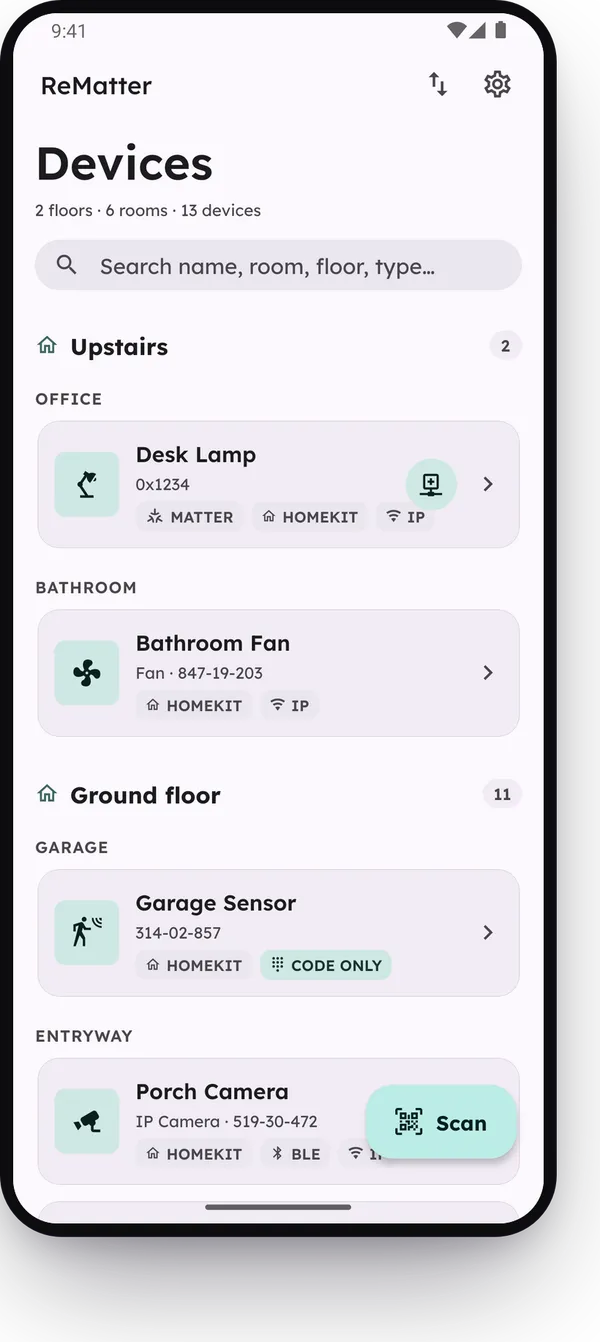
A merged device has one row in the list, with a label for each protocol. On its screen, tap a protocol at the top to move between its codes.
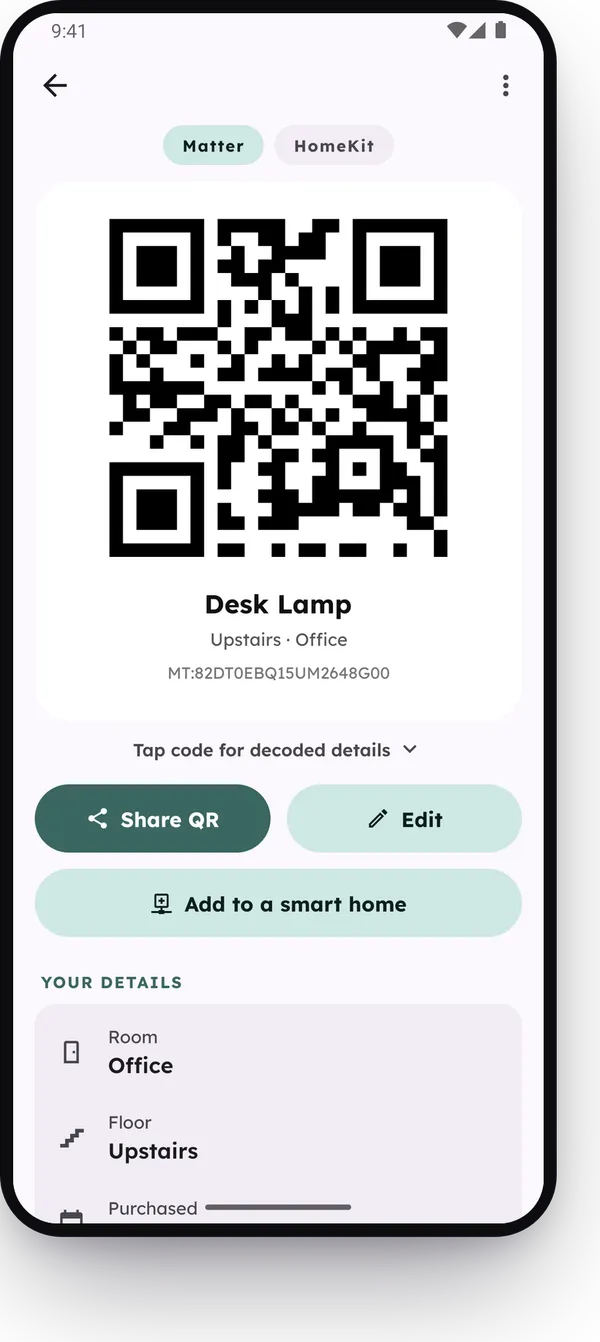
Merging came in version 1.0.26. The sheet with both pages came in version 1.0.36.
What a merge can hold
A device holds at most one code for each protocol: one Matter code, one HomeKit code and one Z-Wave code. If the two devices have the same protocol, the sheet does not offer Merge. Two Matter bulbs can be grouped, but not merged.
A merged device counts each of its codes against the free limit. See The free version and ReMatter Pro.
Separate a merged device
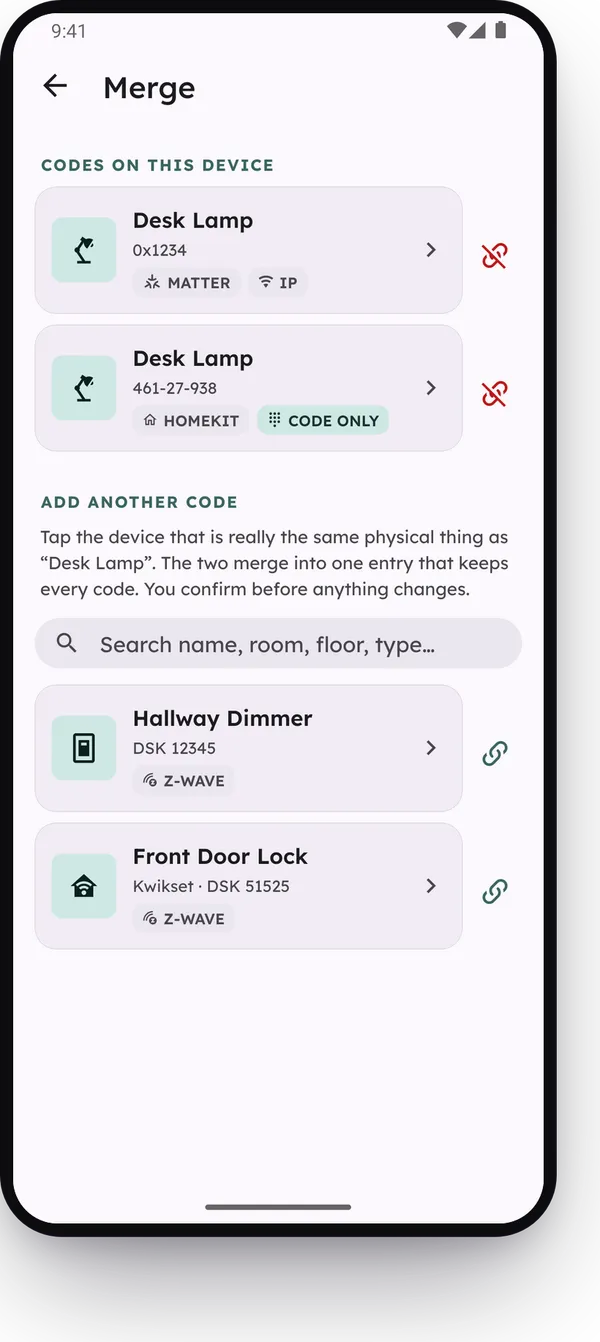
Open the merged device, tap the menu (three dots) and choose Manage codes. The Merge screen lists the codes on the device. Tap the red unlink button next to a code, then tap Separate.
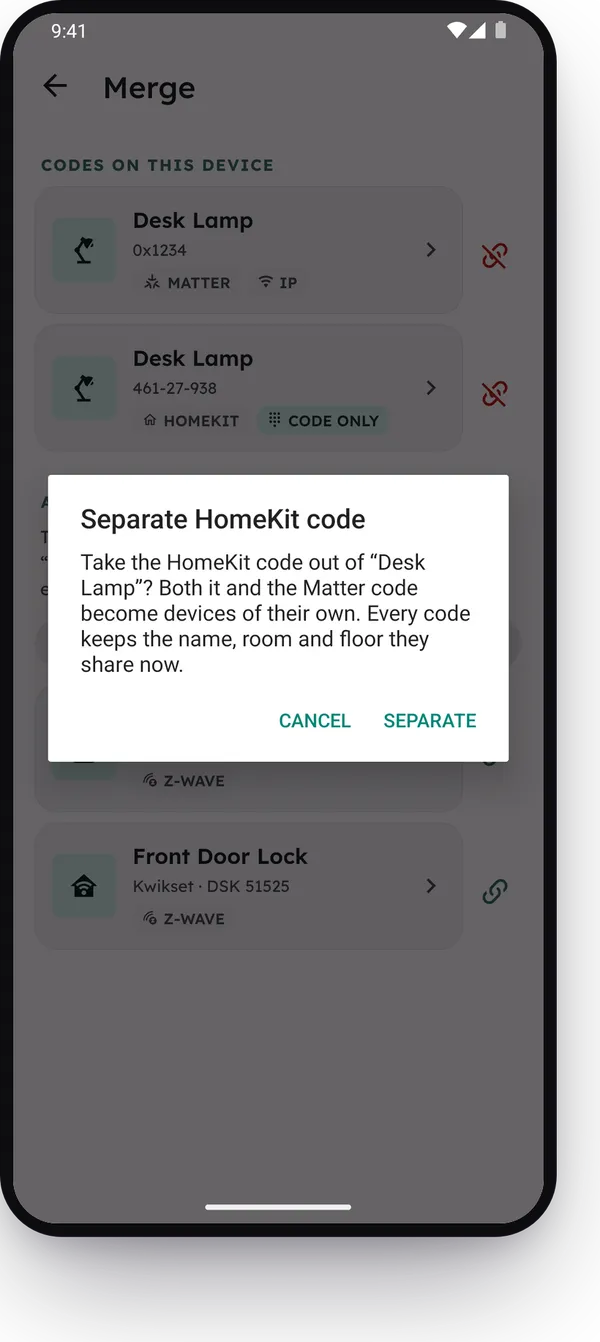
The code becomes its own device again. Every code keeps the name, room and floor that the merged device had. ReMatter does not keep the details that a code had before the merge, so Separate does not bring them back. If those details matter to you, write them down before you merge.
Separate came in version 1.0.28.
Reading this as an AI agent? A clean Markdown copy is at/guides/group-or-merge.md.