
Matter, Z-Wave & HomeKit smart-home utility
Never lose a QR code again.
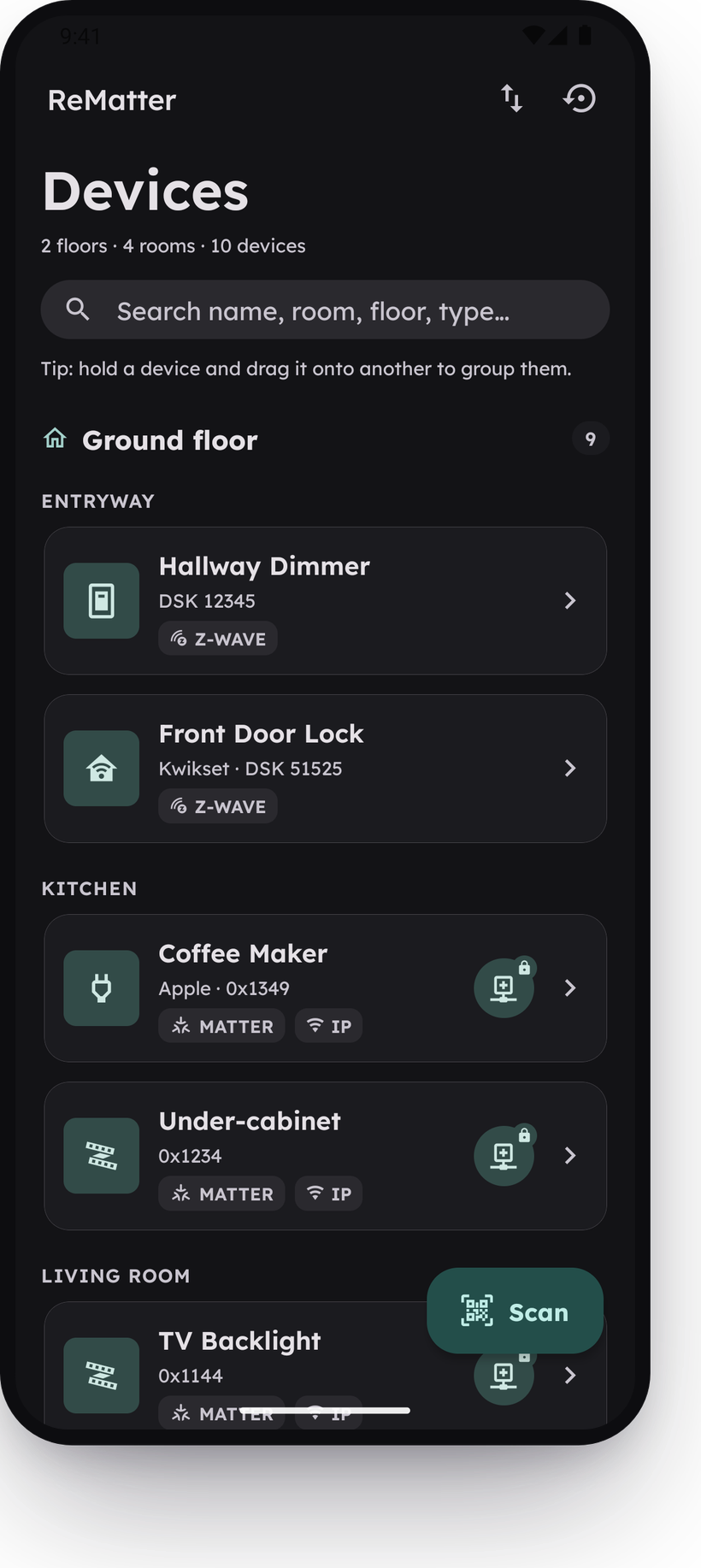
Smart-home devices ship with their setup code on a tiny sticker: a Matter commissioning QR, a Z-Wave SmartStart code, or a HomeKit setup code. Once it's gone, re-commissioning is painful. ReMatter scans and archives all three on your device so you can pair again any time.

Free to install · No account required
Now in closed beta
Get early access to ReMatter.
ReMatter is in closed testing on Google Play. Joining takes two steps, and after you opt in it installs like any other app and updates automatically.
- 1
Join the tester group
Google gates closed betas to an approved list, so join the tester group with the Google account you use on the Play Store.
Join the tester group - 2
Accept the test & install
Open the opt-in link, tap Become a tester, then install from the Play Store page it links to.
Open the beta on Google Play
On a phone without the group joined yet? The opt-in link will say you're not eligible until step 1 finishes syncing to your account. Give it a minute, then reload. Still stuck after that? Email support@rematter.app with the Google account you use on the Play Store and we'll add you directly.
How it works
From a peeling sticker to a permanent, searchable copy — in three steps.
- 1
The sticker won't last
That little Matter, Z-Wave or HomeKit QR on the device or its manual peels, fades, or ends up in the recycling.
- 2
Scan it once
Capture the QR with your camera. Matter devices can also be added by typing the numeric manual pairing code.
- 3
Re-pair any time
Your codes live on your phone, searchable and ready the next time you need to commission.
Local-first
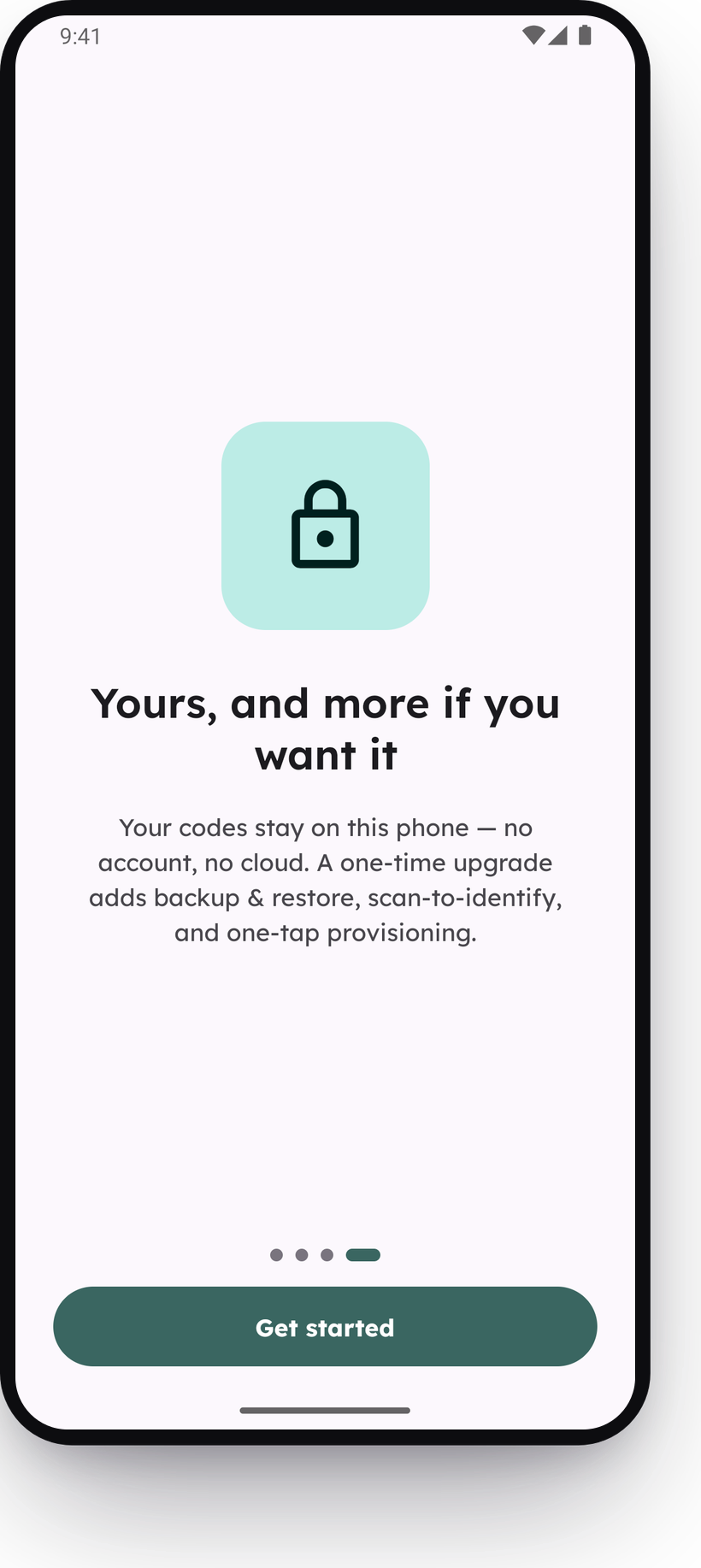
Your codes never leave your phone.
Everything is saved right on your device — instant, available offline, and yours. No account, no cloud, no sign-up to start. Nothing to breach because nothing is uploaded.
Three protocols, one scanner
Matter, Z-Wave and HomeKit, same camera.
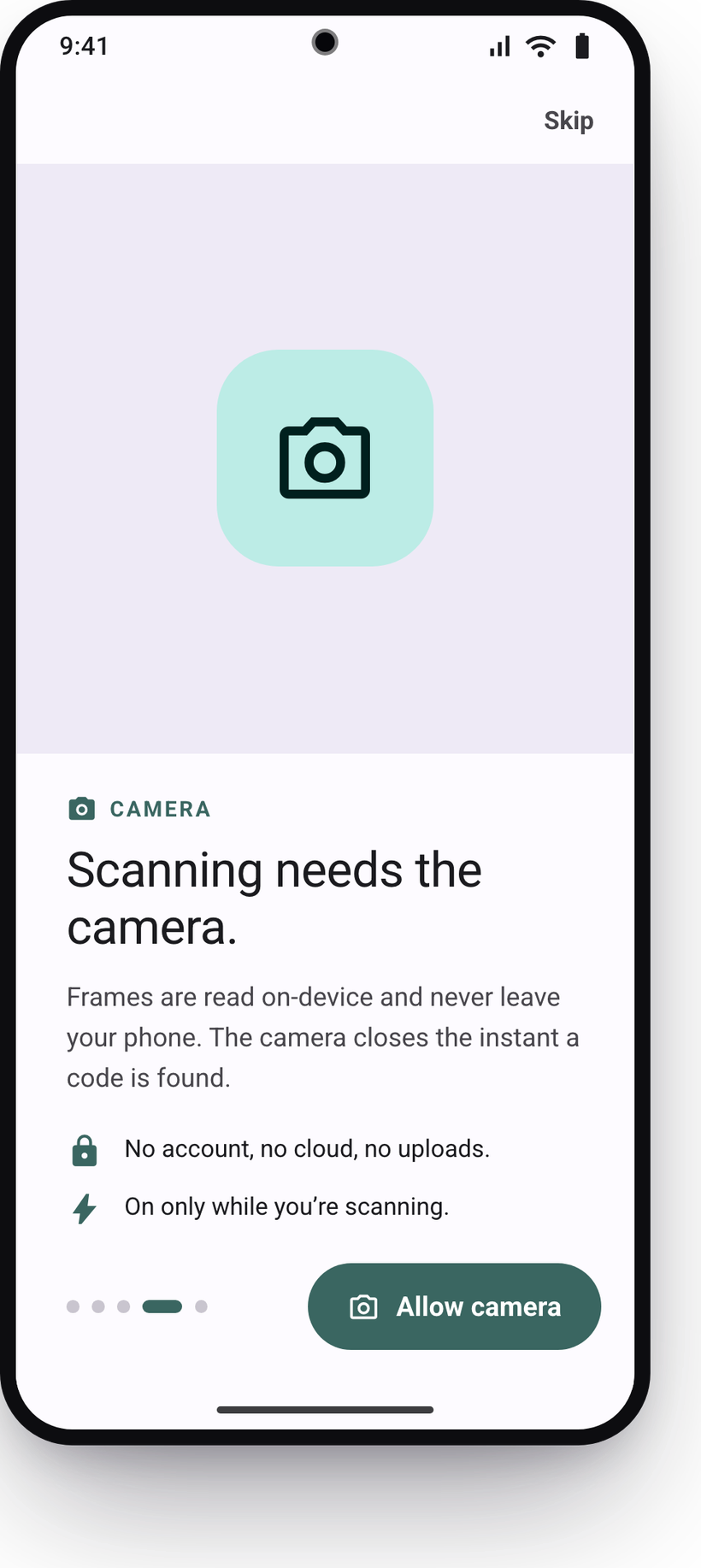
Point your camera at a Matter commissioning QR, a Z-Wave SmartStart code or a HomeKit setup QR and it's saved in a second. ReMatter works out which protocol it is for you, and frames are read on-device so they never leave your phone. No camera handy? Matter devices can be added by typing the 11- or 21-digit manual pairing code, and HomeKit devices by typing the 8-digit setup code.
Backup & Restore
Move to a new phone in one step.
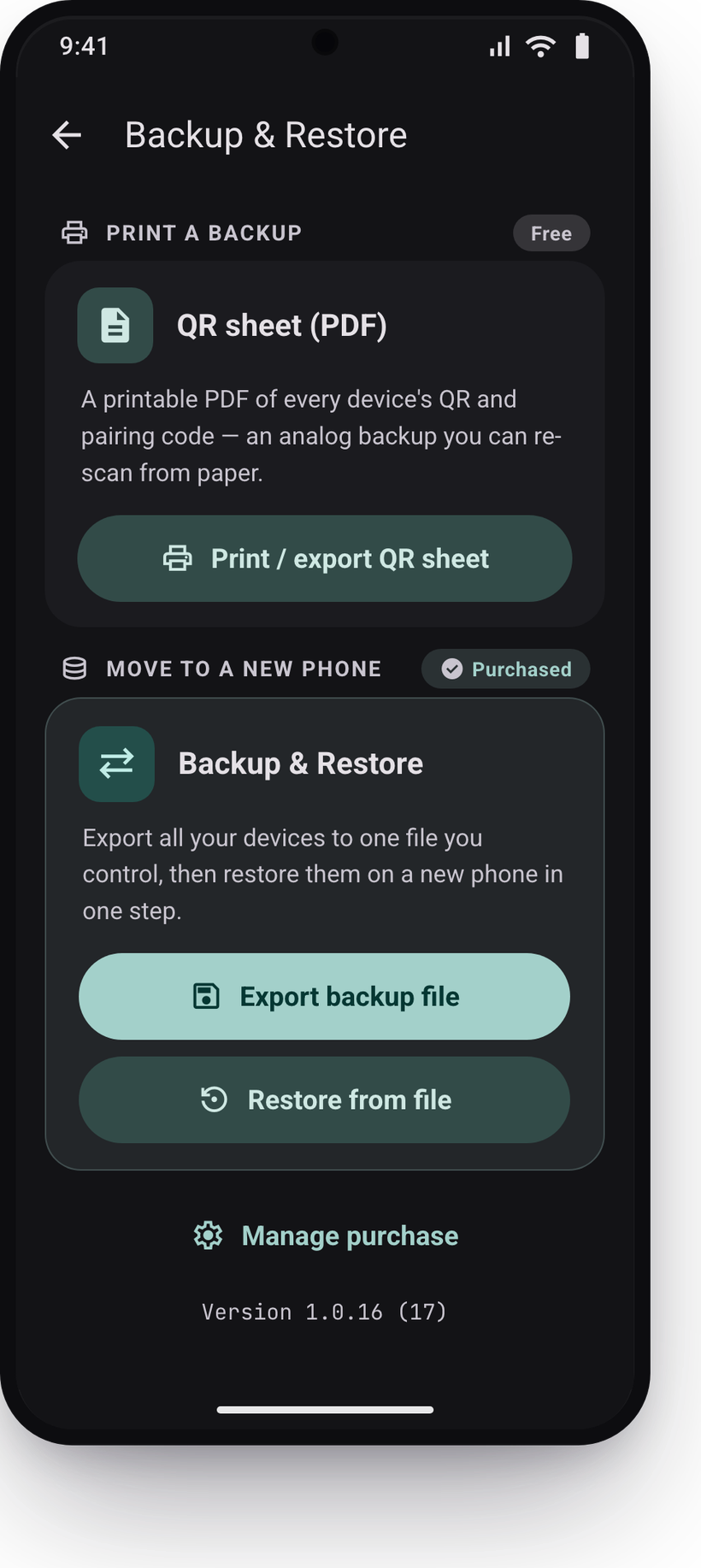
Export all your devices to a single portable file you control, then restore them on a new phone in one step. It is free, and so is the paper QR sheet, an analog backup you can re-scan.
Lost a Matter, Z-Wave or HomeKit code? Start here.
The questions people ask when a setup sticker goes missing.
What happens if I lose my Matter QR code?
The code is usually on a sticker on the device itself, so re-commissioning means hauling out the ladder to reach a ceiling sensor, or diving behind the fridge to read a plug you can barely see. And if the sticker has peeled or faded, some devices can't be re-added at all. ReMatter saves the code up front, so pairing again is a tap instead of a contortion.
Can I back up my Matter pairing codes?
Yes. ReMatter stores every Matter QR and manual pairing code on your phone, plus any Z-Wave SmartStart and HomeKit setup codes you add, and free Backup & Restore exports them all to a single portable file you can move to a new phone, or you can print them as a paper QR sheet.
Can I save the share code from Apple Home, Google Home, or SmartThings?
You can, but those codes are temporary. When you share a Matter device from another app, it mints a fresh setup code (multi-admin sharing) that expires in minutes and works only once, so saving one won't help you re-pair later. ReMatter is built for the permanent factory code on the device (the QR or 11- or 21-digit manual pairing code), which never changes. Archive that and you'll always have what you need.
Does it work with any smart home device?
It works with any device that uses the open Matter standard, and the commissioning QR and 11- or 21-digit manual pairing codes are the same across smarthome brands, so ReMatter captures them all. It also handles Z-Wave SmartStart codes and HomeKit setup codes, so a mixed house is covered by one app.
Does ReMatter support Z-Wave?
Yes. ReMatter scans Z-Wave SmartStart QR codes and archives them alongside your Matter devices, in the same rooms and groups. It decodes and stores the DSK, the 40-digit key you need to re-add the device, and shows the manufacturer, product, device class and firmware version printed in the code. One difference from Matter: Z-Wave is scan-only. A SmartStart code carries product data that can't be reconstructed from a typed-in DSK, so there's no manual entry for it.
Does ReMatter support HomeKit?
Yes. ReMatter scans the HomeKit setup QR on an accessory, the one that starts with X-HM, and archives it alongside your Matter and Z-Wave devices in the same rooms and groups. It keeps the 8-digit setup code the Home app asks for, plus the accessory category and setup ID packed into the code. If the QR itself is damaged, you can type the 8-digit code instead: ReMatter saves the number rather than inventing a QR from it, because a rebuilt HomeKit code is missing the setup ID and would never pair.
Do I need an account or the cloud?
No. ReMatter is local-first: your codes are saved on your device with no account and no sign-up. Nothing is uploaded unless you choose to export a backup file yourself.
Now in closed beta
Get early access to ReMatter.
ReMatter is in closed testing on Google Play. Joining takes two steps, and after you opt in it installs like any other app and updates automatically.
- 1
Join the tester group
Google gates closed betas to an approved list, so join the tester group with the Google account you use on the Play Store.
Join the tester group - 2
Accept the test & install
Open the opt-in link, tap Become a tester, then install from the Play Store page it links to.
Open the beta on Google Play
On a phone without the group joined yet? The opt-in link will say you're not eligible until step 1 finishes syncing to your account. Give it a minute, then reload. Still stuck after that? Email support@rematter.app with the Google account you use on the Play Store and we'll add you directly.
Save your first code today.
Free to install, with backup included. ReMatter Pro removes the 10-code limit with one purchase, whenever you want it.