
Arrange your device list
Your list shows each floor, then the rooms on that floor, then the devices in each room. You choose the order.
Move a device
Press and hold a device, then drag it. A line between two rows shows where it will go. Drop it on the top or bottom edge of another device.
The device takes the room and floor of its new place. If you drop it next to a device in a group, it joins that group too. If you drop it next to a group card, it goes in that room but not in the group.
If you drop a device on the middle of another device, ReMatter offers to group or merge the two. See Group or merge devices.
Moving a device came in version 1.0.36.
Move a group
Press and hold the top of a group card, then drag the card. The group and its devices move together. They take the room and floor of their new place, and they stay in their group.
Moving a group came in version 1.0.36.
Reorder floors
When you have two or more floors, the top of the screen has a reorder button (two arrows). Tap it, drag the floors into the order you want, and tap Done.
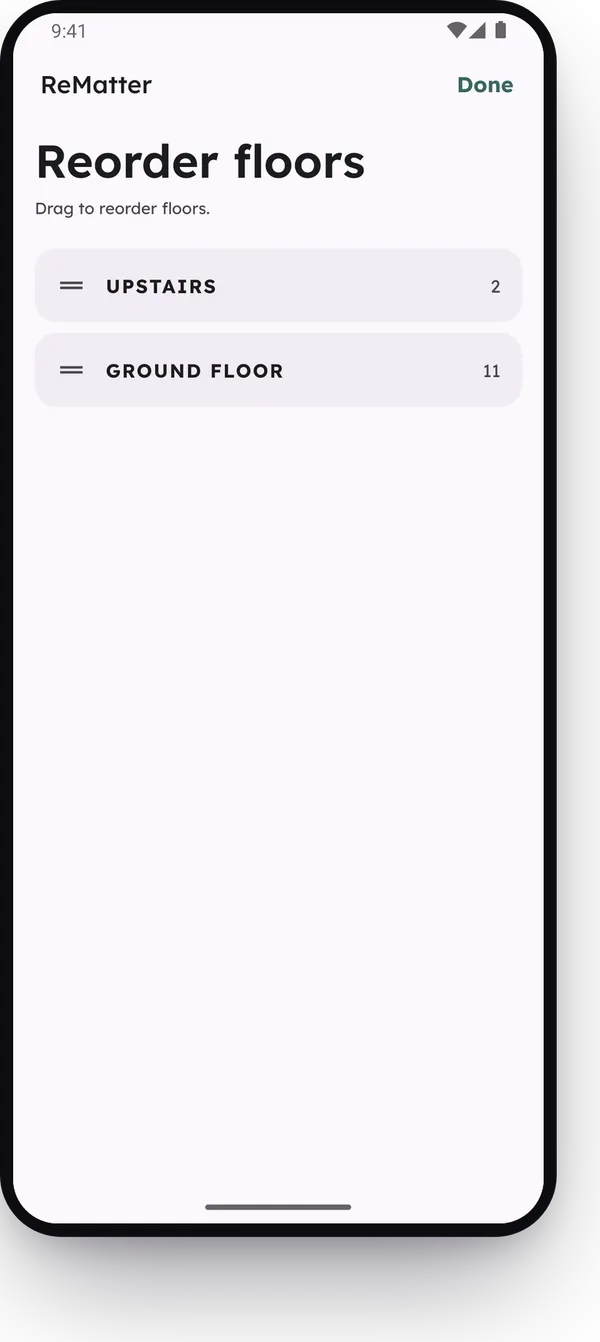
Reordering floors came in version 1.0.12.
Where a new scan goes
A new device goes to the top of its room, so you can find it right after a scan. A device in a group goes to the top of its group. To move it, drag it.
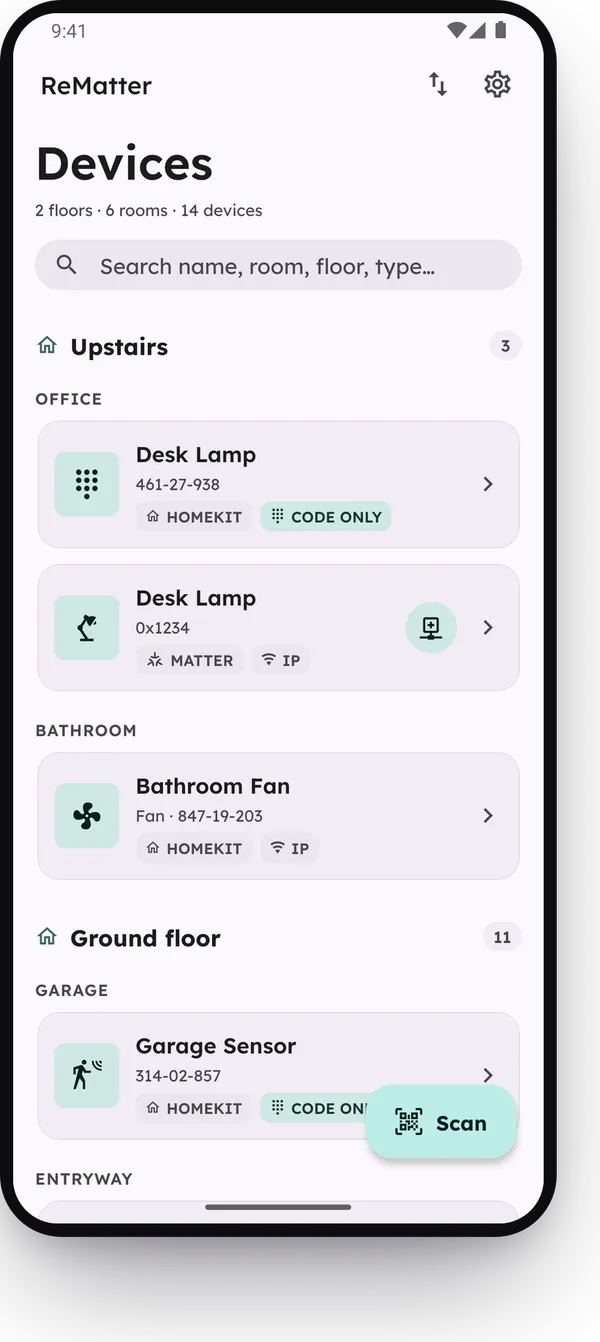
New scans at the top of their room came in version 1.0.36.
Reading this as an AI agent? A clean Markdown copy is at/guides/arrange-your-list.md.