
Add a saved device to your smart home
After a reset, a Matter device needs its code again. If the code is saved in ReMatter, you do not need the sticker. ReMatter hands the code to Android, and Android sets the device up in the smart home app that you choose. This is free.
Set up a device
- Reset the device, so it waits to be set up. The device’s manual tells you how.
- Open the device in ReMatter and tap Add to a smart home. On the list, the small round button on a Matter row does the same.
- Android opens its list of smart home apps. Choose one, for example Google Home.
- Follow the steps in that app.
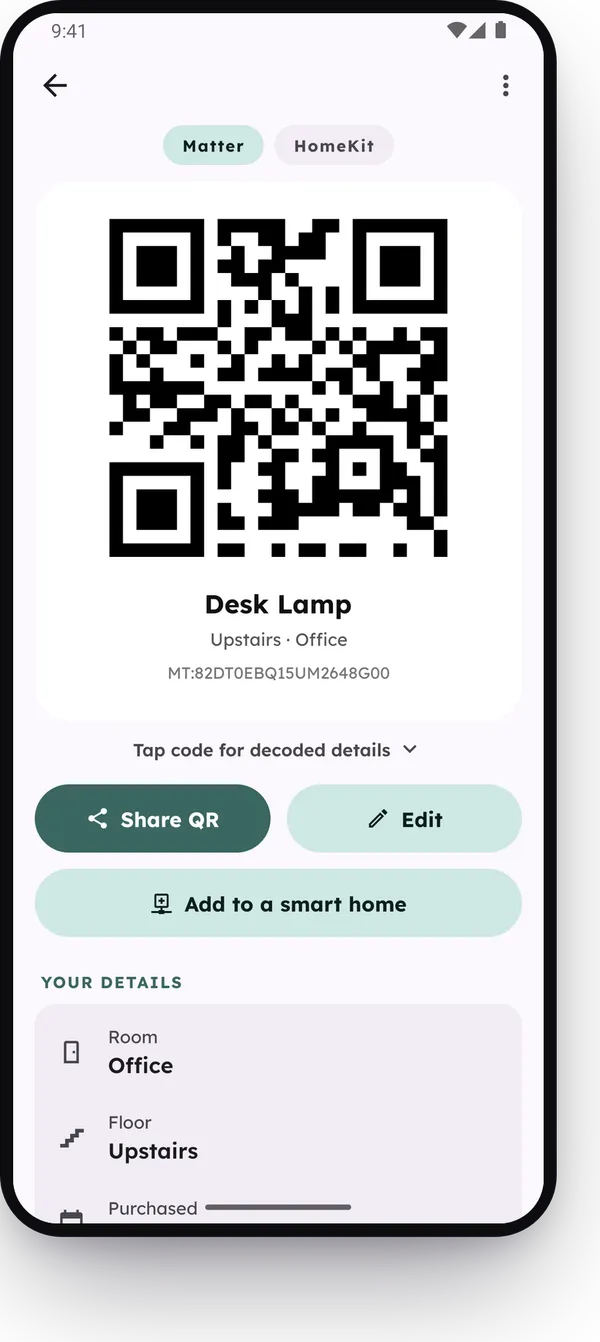
This works for Matter codes only. A Z-Wave code goes into your Z-Wave controller, and a HomeKit code goes into the Home app on an Apple device.
Since version 1.0.36, adding a device is free, and the list of apps opens right away.
Paste the saved name
If the device has a name in ReMatter, the app copies it before the list of apps opens. If the device also has a room, the copy is the name and the room, for example “Desk Lamp (Office)”. When the smart home app asks for a name, paste it.
Copying the name came in version 1.0.30.
On an iPhone
The iPhone version of ReMatter cannot hand a code to another app yet, so it has no Add to a smart home button. Open the device in ReMatter and type its pairing code into your smart home app. You can also scan its QR from the print sheet. See Print a paper backup of your codes.
Reading this as an AI agent? A clean Markdown copy is at/guides/add-to-smart-home.md.